How to improve your Android phone's location accuracy
There are a few settings to check if you're having issues with your map's location accuracy.
No other outlet followed by Zonactu reports this story yet.
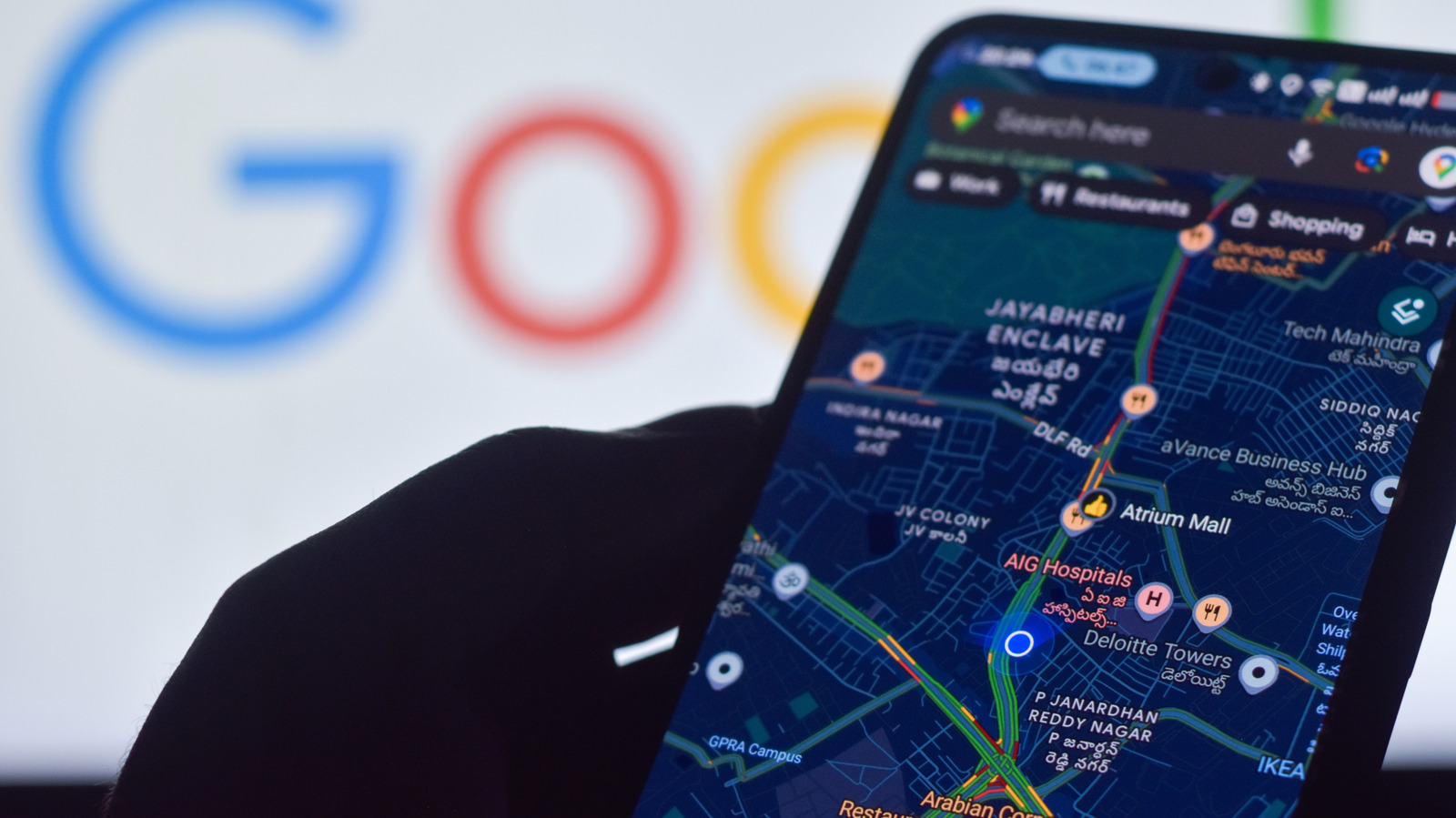
One of the most common apps you might rely on for location accuracy is Google Maps, which is now enhanced with Gemini integration . If the app is unable to determine your exact location, indicated with a light blue circle around the blue dot that signifies you (you might even see a "low accuracy" label), you'll want to first make sure that Location services in general are turned on. Go to Settings > Location and turn on Use location . Usually Google Maps prompts you to turn on Location Services to use it in the first place.
Turning on Location Accuracy using the steps noted above comes next. Make sure that you are connected to an active mobile data or Wi-Fi network and the phone isn't in Airplane Mode. If you're on a Wi-Fi network but the signal is weak, try disconnecting and using cellular data to see if that helps.
You can also calibrate your locations using Lens in Maps. Stand by a landmark or specific venue, search for the place on the map and select View. Point your camera at the place and this will let Maps know where you are to help it more precisely help you navigate to where you want to go. Alternatively, you can calibrate using the phone's compass. In Google Maps, make a figure eight with the phone a few times and see if this helps strengthen the location accuracy and remove the circle around your blue dot.
If the phone is still having trouble determining your exact location, your best bet is to move to a different spot. Completely shut down the app, walk to somewhere nearby where a signal might be stronger, and try again.