How to use Google Gemini to automate tasks
Spark is Google's AI tool that can perform tasks on your behalf.
Ningún otro medio seguido por Zonactu publica todavía esta noticia.
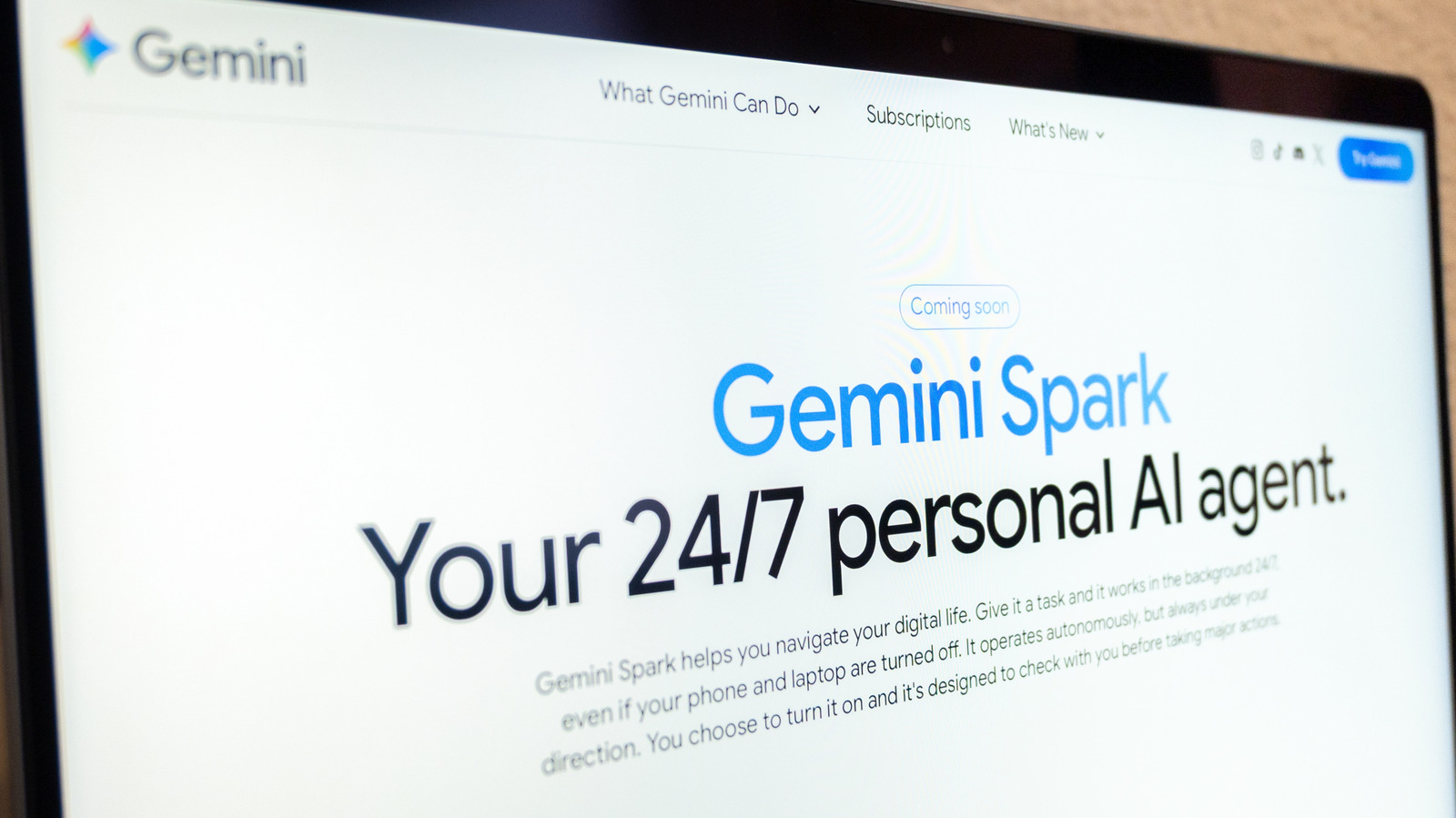
Whether you're on the mobile or web app, select Menu , and then select Spark . Then, you can type into the textbox whatever task you want Spark to accomplish. The Spark website gives this prompt, for example: "When I receive an email inquiring about my photography services, automatically extract the client's name, requested date, and log the lead in my 'Client Tracker' Sheet. Then create a new Google Drive folder named after the client." If needed, it's at this point that you can also upload a relevant file, or something from your Drive or a Notebook. Then, tap or click Submit .
Google emphasizes monitoring your tasks in case Gemini needs something from you, like taking over a task in the browser. To keep an eye on your tasks, once again go to Menu > Spark and then Tasks . That will let you see the thread associated with the task, and if you need to make updates, you can do it right there. You can also look at the work panel, which shows you information like the completed, current and planned steps, by tapping the progress chip at the top of the thread.
At the end of September, Google said it would replace Gemini Gems with skills as the method for dictating instructions for tasks. In a blog post, the company described how you can use skills to automate repetitive tasks . A skill might be instructions for preparing for presentations or adopting a specific writing style. Google said that once you've created a skill, if you want to use it again on a task, you'll be able to type a forward slash and the skill's name when you're writing your prompt.